This is an old revision of the document!
7. Project Development
This chapter outlines the development from initial idea to final concept, including ideation, prototyping, key design decisions, and the integration of technical and marketing elements.
This chapter describes the development from idea to concept and aims to provide insight into the creation of the final design. It begins with the problem statement and the initial ideation phase, in which the first directions and starting points are explored. This is followed by a discussion of the brainstorming sessions surrounding the core concept, with attention to the water system and smart technologies.
The focus then shifts to the prototyping phase, where the key concepts are further developed, tested, and substantiated. This section addresses not only the choices that were made, but also the considerations underlying those decisions. In addition, attention is given to the development of marketing materials, such as the flyer and the logo.
Finally, this process leads to the final design, including a model, an analysis of manufacturability, the software systems, and the associated smart packaging.
7.1 Design Question
The Smart Pot is needed because it uniquely bridges this gap by linking screen-time behavior to the health of a real plant. This creates a tangible feedback loop that makes digital habits more visible, meaningful, and emotionally engaging. Unlike existing solutions, it introduces real-world consequences and rewards, which strengthens behavior change through lived experience rather than abstract digital feedback.
Therefore, a new product is required because current solutions are either too abstract (digital-only) or too limited in scope (plant-only), while there is a clear need for a hybrid system that integrates behavioral psychology, IoT technology, and physical interaction to promote sustainable digital habits and well-being.
Now that the “why” is clear, the “how” comes next. Since achieving a perfect design within a single system is complex, the overall problem was divided into several subproblems to make the development more structured and manageable. These subproblems will be solved one by one until a final design is reached
7.2 Ideation
7.2.1 Results from the first brainstorm and design meeting
During the design process, the team started with a general meeting to discuss initial ideas for a solution. After this, a brainstorming session was held, resulting in several possible sketches. These sketches were later used as inspiration for the final design.
Figures 1, 2, 3, 4 show the pot sketches from the brainstorming.


7.3 Form and aesthetics
7.4.1 Design Process
To determine the form of the product, it is important to first understand the functional requirements that the shape needs to support. The design process starts with the water tank, as it is the core component of the system. Because the tank operates using gravity, it must include a clear lowest point where water naturally collects and flows from. This makes the tank shape critical, as it directly influences how well the system functions.
At the same time, this creates a design challenge. A gravity-based tank can result in an asymmetrical form, which may affect the overall stability of the product. To address this, the weight of the pot needs to be carefully balanced so that it remains stable in everyday use. Once the tank is designed, the rest of the product is built around it. This includes creating a separate and protected space for sensitive electronics, ensuring they are not exposed to water.
In addition, the design must account for practical use. There needs to be a clear and accessible way to refill the water and nutrients, as well as a system that allows excess water to drain in case of overwatering. Altogether, the final form of the product is shaped by these functional requirements, balancing stability, safety, and usability with a clean and cohesive design.
7.4.2 Designing the water tank
Electronics involved
An important component within the water tank is the solenoid valve, which controls the water flow. This element must be seamlessly integrated into the tank design so that it functions reliably without disrupting the overall structure or usability. It should be positioned in a way that supports efficient water distribution. For this project, a 12.7 mm valve will be used.
The valve must be placed horizontally to ensure consistent and reliable operation. In a horizontal position, water can flow evenly through the valve without being affected by gravity in a way that could cause uneven pressure or incomplete opening and closing. This orientation also helps prevent air pockets from forming inside the valve, which could disrupt water flow or reduce efficiency. Additionally, placing the valve horizontally improves durability, as it reduces unnecessary stress on internal components and connections, helping to maintain a stable and leak-free system over time.
Shape studies
For the ideation of the water tank, a shape study and brainstorming session was carried out. The focus was on finding a form that is both practical and visually appealing. Different shapes were explored to ensure efficient water flow, proper integration of components such as the valve, and overall stability of the product. At the same time, attention was given to aesthetics, aiming for a design that fits naturally into a home environment and feels clean and well-balanced.
Figure 5 shows shape study sketches focusing on water flow, stability, and appearance during the brainstorming stage.

Shape number 4 shows the most promising direction for gravity-based water flow, as the tank is designed to wrap around the pot. This allows the water to naturally move toward the lowest point, improving distribution and efficiency. Although this results in an asymmetrical form at the bottom, it still maintains overall stability. With only minor adjustments, this shape can also accommodate the electronic components, making it a strong balance between functionality and integration.
Final design of the watertank
For the final design, several key aspects had to be considered. The optimal water volume was defined to ensure efficient use, resulting in a tank capacity of a little over 1 L. At the same time, the system’s gravity and overall stability were carefully balanced, which led to a corner-shaped design.
In addition, the product needed to support easy integration of the valve, as well as simple access for refilling and cleaning the tank. To achieve this, a tilted bottom was added to guide the water toward a single point, including an opening in the tank. In the final 3D model, a corner piece will be incorporated to allow the valve to be mounted horizontally, ensuring reliable operation and proper water flow.
Figure 6 shows the final water tank design, including the sloped bottom and the valve position.

Final design of the pot
After the design of the watertank the rest of the pot was designed.
Figure 7 shows the final pot design made in CAD, with the inner container and outer structure.

Figure 8 shows the final pot design with a cork outer structure.

7.4.3 Product cross-sections
To ideate the internal layout of the product, a simple sketch (Figure 9) was first created to explore the placement of components. This concept was then further developed and refined into a detailed SolidWorks model. As shown in Figure 9, the electronic components are placed in a separate compartment at the base of the structure, ensuring protection from water and improving system reliability.

7.5 Concept
This chapter presents the final design of the Smart Pot, including the finalized sketch and the SolidWorks model that forms the basis of the concept. The final design is the result of multiple iterations, where initial ideas were refined into a coherent and functional product.
The design sketch illustrates the overall form, proportions, and key features of the product, providing a clear visual representation of the concept. This sketch was then translated into a detailed SolidWorks model, where the design was further developed with accurate dimensions, component integration, and construction details.
Together, the sketch and the 3D model demonstrate how the conceptual ideas were transformed into a technically feasible and well-structured product.
7.6 Design
Figure 10 shows the final design with a clear outer layer, a cork outer structure, and the logo on the pot.

Figure 11 shows the final render of the pot.

7.7 Structure
7.7.1 Structure
The product is built around a clear, layered structure in which each component serves a specific function while contributing to the overall design. At the top, the plant is placed directly in an inner growing space containing a substrate of soil and water beads to maintain optimal moisture conditions. This inner structure is 3D printed in white polyethylene terephthalate (PET), ensuring it is fully waterproof and suitable for long-term water exposure. It supports healthy plant growth while still allowing access for maintenance when required.
Surrounding this inner structure is a transparent shell that functions as the water tank. This tank is also 3D printed in clear PET, making it waterproof while allowing the user to easily monitor the water level. Its transparency creates a visual connection between the plant and the system that sustains it.
The outer structure is made from cork in the final design. During manufacturing, draft angles were taken into account to ensure proper mold release and manufacturability. Cork was selected not only for its visual and tactile qualities but also because it is locally produced in Porto, supporting sustainable and regional manufacturing.
The base of the product houses the main technical components, including the water control system, electronics, and valve. These components are separated from direct contact with water for protection. This section also accommodates a sensor for monitoring system conditions and a charging port for powering the device. The wider cork base ensures stability by supporting the weight of both the tank and the plant.
Overall, the design integrates plant growth, water storage, material selection, and technical functionality into a single compact and cohesive system.

Figure 13, 14, 15, 16 show the solidworks of the pot and watertank.


The structural integrity of the Solidworks model with study main pot was evaluated using a Static 1(-Default-) study to determine the Static nodal stress (Stress1) under operational conditions. To simulate the weight of wet soil, a pressure load of 0.00206 N/mm² was calculated using the hydrostatic formula P = ρ · g · h (where ρ = 1400 kg/m³, g = 9.81 m/s², and h = 0.15 m), resulting in a total pressure of 2060.1 Pa. The model, constructed from PET (Part20), was constrained at its bottom surface and at a single screw hole to reflect its actual mounting configuration. The analysis reveals a maximum von Mises stress of 4.254e+05 N/m² (425.4 kPa), with significant stress concentrations localized around the screw hole and the top rim of the pot. While the overall structure remains stable, the Deformation scale of 2,055.71 highlights these critical regions, identifying the screw attachment point as the primary area requiring potential reinforcement to ensure long-term durability under the weight of the wet soil.</small>
Figure 42 shows the structural simulation of the pot.

7.7.2 Smart System
The smart pot features a side-by-side physical design engineered specifically for gravity-fed irrigation. The water reservoir is positioned adjacent to the plant container but sits at a higher elevation to create natural water pressure. An isolated electronics compartment is located underneath both sections to keep all hardware safely separated from the water lines.
Electrical Routing and Power Sequence
Power enters the system from a standard wall socket through a 12 V power cable.
Inside the electronics compartment, the current flows through the hardware components in the following sequence:
- Master Power Switch: A physical rocker switch embedded into the exterior of the pot acts as the main power control.
- Step-Down Buck Converter: Converts the main 12 V supply into a stable 5 V logic rail.
- Relay Module: A single relay, connected to the 5 V rail, is used to control the 12 V motorized ball valve.
- ESP32 Microcontroller: Powered by the 5 V rail, it steps power down internally to supply a 3.3 V rail for the sensors.
- Sensor Suite: The capacitive soil moisture sensor is placed directly into the soil and runs on the 3.3 V line. The digital temperature sensor is mounted in a dedicated exterior slot on the side of the pot, utilizing a 4.7 k Ω pull-up resistor between the sensor and the ESP32 data pin.
System Logic and Mobile Application Integration
The ESP32 microcontroller manages two automated routines that communicate directly with a dedicated mobile application.
Firstly there's the gravity irrigation and screen time penalty. When the soil moisture sensor detects insufficient levels of moisture, the ESP32 triggers the relay to open the motorized ball valve for a few seconds. Because the reservoir is elevated, water flows naturally into the soil without a pump. In case the user wants more interaction with the plant pot, the user can enable a setting that enables a button in the app which much be pressed manually to open the valve instead.
The watering of the plant is directly tied to the user's mobile screen time habits. If the user exceeds their preset daily screen time limit or violates their in-app focus sessions, the smart pot initiates a penalty state. This state apprehends the plant from being watered for a short amount of time and notifies the user about this state on their phone. All of this is realized with plant ethics in mind.
Secondly there's live temperature tracking. The temperature sensor continuously monitors the ambient environment. If the temperature shifts outside the optimal range for the plant, the system sends a push notification to the user's application, advising them to physically relocate the pot to a more suitable environment.
Software
As mentioned before, the plant pot works with push notifications and button presses to keep the plant alive. Aside from this function, the app also shows a live stream of the sensor data, allowing monitoring of the state of both the plant and the plant pot.
Firstly, the push notifications. The app shows the user the sensor data when they have it open on the foreground. They can view the live stream of data (which gets updated each second) on their plant overview page. The purpose of push notifications is to alert the user when the sensors pick up data that signify undesired conditions for the plant to grow, low moisture for example. These notifications allow the user to monitor the plant when the app is not running in the foreground. This is possible due to the back-end notifying te front-end using a push notification service which is continuously running. Because of this, even when the application is closed, the user will receive notifications on their phone. This will be possible with Firebase Cloud Messaging. More information about this can be found in chapter 8 which is dedicated to the software.
Secondly, button presses. The plant pot can run in 2 states, being an automatic mode and a mode that requires user input. The automatic mode means the user only needs to study or work frequently using the focus mode on the app. The secondary mode is where the user can choose when to water the plant. This mode brings out a button on their plant overview page which is only enabled when the sensors detect undesired data, low moisture for example. Pressing this button will temporarily open the valve, letting water pass through, and then shutting it off again. This way, the user won't give the plant too little water, nor will they give too much water.
Thirdly, the live stream. Using Supabase's realtime table functionality, the app can read live changes done to the database entry and display them on the screen using Flutter's state widget. More information about this process can be found in chapter 8, the designated software chapter. The flow charts for using the product and comparative diagram are to be found in chapter 8 as well.
7.7.3 Packaging
Figure 18 shows the detailed packaging overview of Screen2Green. The packaging was designed to protect the smart planter and the small items included with it, while also considering sustainability and reuse after unpacking. The outer box is made of recycled kraft cardboard and includes the Screen2Green logo, simple eco-icons, and basic handling information.
The figure also presents the main product dimensions. The planter size is 22 cm × 22 cm × 22 cm, including the cork-textured outer body, inner pot, and transparent water tank. The package includes the eco planter, care guide, seed pack, LECA pack, and molded pulp insert tray. Each item is placed separately so that the contents are easy to see and take out.
The molded pulp insert tray helps keep the components in place during transport. The care guide, seed pack, and LECA pack are packed in small cork-based paper boxes, which match the natural look of the product. The tray is also designed for second-life use, so after unpacking, it can be reused as a desk organizer or a small storage tray.

Figure 19 shows the final packaging concept for Screen2Green. The outer box is made from recycled kraft cardboard, and the inside uses a molded pulp insert tray to hold the product and accessories. The planter is placed in the main compartment, while the care guide, seed pack, and LECA pack are arranged on the right side for easy access.
The packaging also includes molded pulp locking tabs to reduce movement inside the box. These tabs help keep the planter, water tank, and small packs stable during handling and transport. This allows the product to be protected without using plastic fixing materials.
The packaging was also designed with reuse in mind. After the product is removed, the molded pulp tray can be used again as an office organizer or a seed starter tray. This supports the idea of “one pack, two purposes” and helps reduce unnecessary packaging waste.

7.8 Prototype
To build a working proof-of-concept prototype, the mass production design was scaled down and simplified. These changes allowed the team to quickly test the core software logic, sensors, and fluid mechanics using readily available components.
The primary differences between the final product design and the prototype are as follows:
Materials and Housing: The final commercial product features a 3D printed, integrated plastic body with built-in internal wiring channels. To save time and manufacturing costs. The electronic components are housed safely in an external project box rather than being embedded into the bottom of the pot.
Electronic Assembly: Instead of using a custom printed circuit board (PCB) designed for mass manufacturing, the prototype is built using a standard ESP32 development board. The sensors, relays, and power converters are connected using standard jumper wires and breadboards.
Fluid System Adjustment: A temporary 8W submersible pump and a second relay module were added to the prototype's water reservoir. This was strictly to overcome a mechanical pressure issue with the specific solenoid valve used during prototyping (this pressure issue is fully detailed in the testing section below). The final product will remove this pump and use a zero-pressure motorized valve to return to a pure gravity-fed system.
Software State Simulation: The final product will require deep integration with mobile operating systems to read actual screen time usage. For the prototype, this feature is simplified using manual digital inputs or simulated data flags within the app to trigger the punishment and notification logic.
7.8.1 Structure
Detail and explain any changes made in relation to the designed solution, including structural downscaling, different materials, parts, etc.
7.8.2 Hardware
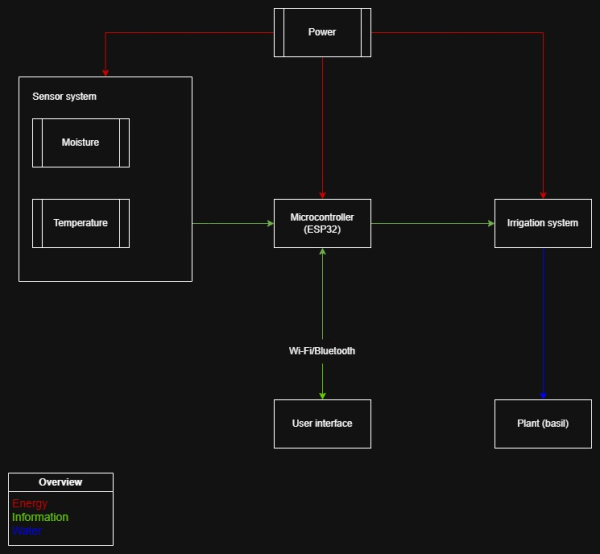
Figure 20 presents a block diagram for Screen2Green pot. At the core is an ESP32 board that is working as “brain” of the whole system connecting it with sensors and watering system. Soil moisture sensor gives information through the microcontroller when opening the valve is needed. Additional sensors like temperature one are appearing on the screen of the app user.
The electrical system presented in Figure 21 starts with a 12 V DC power source connected through a DC jack to provide the high voltage required for the mechanical irrigation hardware - relay module. A buck converter is used because the microcontroller operates on 5 V and requires a significantly lower voltage than the main power line to prevent component damage. The soil moisture and temperature sensors are working on 3.3 V provided by the ESP32 pins to maintain safe logic levels and ensure accurate data collection from the plant environment. A 4.7 kΩ resistor is included for the temperature sensor to ensure signal pull up stability which is necessary for clear digital communication. A relay module is present to act as an electronic switch, because the ESP32 can only output low-power signals and cannot directly drive the current required by the irrigation valve. The valve is responsible for regulating water flow from the tank as part of the gravity-fed irrigation system. A diode is installed for protection against voltage spikes generated when the valve is switched off, preventing potential damage to the relay module or microcontroller.

Table 1 lists each hardware component with a direct link to a local Portuguese provider to guarantee that every part is verified for regional availability and technical compatibility. Values are maximum or peak values.
Table 2 presents the power table for the system to show the specific voltage and current values required to maintain safety under both normal and maximum load. These numbers are necessary to confirm that the 12 V DC source provides enough energy to operate the ESP32 and the solenoid valve simultaneously without failing.
| Equipment | Voltage [V] | I_normal [A] | I_max [A] | P_normal [W] | P_max [W] |
|---|---|---|---|---|---|
| Motorized Valve 1/2” DN15 | 12.0 | 0.000 | 0.100 | 0.000 | 1.200 |
| ESP32 Development Board | 5.0 | 0.080 | 0.240 | 0.400 | 1.200 |
| Relay Module (1-ch) | 5.0 | 0.005 | 0.075 | 0.025 | 0.375 |
| Capacitive Soil Moisture Sensor | 3.3 | 0.005 | 0.0050 | 0.017 | 0.017 |
| Temperature Sensor (DS18B20) | 3.3 | 0.001 | 0.002 | 0.003 | 0.005 |
| Buck Converter (Internal Loss) | 12.0 | 0.010 | 0.020 | 0.120 | 0.240 |
| TOTAL | 0.101 | 0.792 | 0.565 | 7.237 |
7.8.3 Software
This project consists of a hardware product, being the growth pod, and an application. This app's intention is to help users improve their productivity and allow for quick monitoring on the plant and the growth pod.
The concept
Using the app, the user can temporarily remove any form of distraction. Whether it's in the form of notifications, or in the form of opening regular apps, the user won't be able to access these when in a focus session. A focus session is a period of time that the user sets manually using the app that helps them to focus on things outside of the screen. When the user respects the focus session and stays away from the phone for the set amount of time, the plant will continue to grow flawlessly. However, when the user decides to violate this session and end the time prematurely, this will get communicated with the growth pod and the plant's growth will get hindered. The user will be able to change certain settings to allow the usage of certain applications. This idea was brought forward to allow users who need social media for work purposes to still be able to use the app.
Secondly, the user can share their progress in an open community space within the application. In this space, users can share the growth of their plant or their personal growth in productivity. This idea is made to strengthen the user's motivation and increase their productivity even further.
Thirdly, the user will get even more motivation due to generated texts of affirmation and phrases that remind the user of their goal and ground them.
Finally, the application provides users with exercises to further reduce their screen time. For example, users may be encouraged to walk a certain number of steps outdoors, which can be monitored and tracked in real time. The application is designed as a productivity and digital well-being tool, with optional social features that allow users to share their progress.
The design
Before developing, the developer of the team created a high-fidelity wireframe to base the project on. The design of this wireframe is inspired by Liven, Forest and minimalist phone. This wireframe was also used to initiate user testing and to get feedback on the design choices and user flow. Below are listed the pages and the motivation behind the design of each page, as well as how the user testing had impact on it.
Figure 22 is a screenshot of the app’s initial onboarding and authentication screen shown when the user opens the application for the first time. It prompts the user to either create a new account or log in with an existing one, giving an early preview of the app’s visual design language. The registration process is intentionally minimal, requiring only a name, email address, and password. No external authentication services such as Google Sign-In are integrated, ensuring a fully consistent and self-contained authentication interface aligned with the overall app design. The design emphasizes simplicity and consistency, requiring only essential user information (name, email, and password) and avoiding third-party authentication services to maintain a unified user experience.

Firstly, the app uses a mix of neutral colors and green. Depending on the chosen theme, the user will see the app in a mix of white and green or black and green. Green is proven to calm the mind and make a person more relaxed. Secondly, this color is linked to nature [1]. These 2 factors make it a perfect choice for this certain project. It is suggested that green boosts health and motivation, but this doesn't have grounded proof.
Secondly, the app uses round edges. It's proven that the roundness of a corner is linked to the brightness of that same corner [2]. This means that the sharper a corner is, the brighter the human eye perceives it. Brightness is then linked to the amount of neurons that get spiked when looking at it, meaning that the roundness of a corner affects the focus of a user. Rounder edges are more relaxing to the brain, they allow the user to focus more on the content of the app.
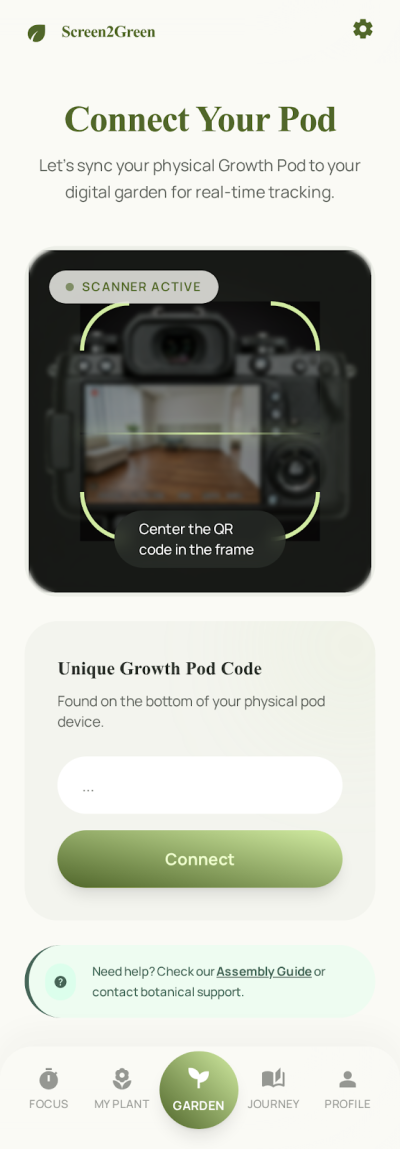
Figure 23 is a screenshot of the app interface showing the post-login setup screen where users are prompted to connect their account to a growth pod for the first time. Each growth pod is provided with a unique QR code and a corresponding alphanumeric code. The application allows users to activate their device camera to scan the QR code, automatically linking the growth pod to their account. Alternatively, if scanning is not possible, users can manually enter the alphanumeric code as a backup method to complete the connection process. This post-login connection screen allows users to link their accounts to a growth pod using either a QR code scan or a manual alphanumeric code entry as an alternative pairing method.

The app will show a cog wheel at the top right of the screen. This cog wheel will stay on this location through the entire user flow and will only contain a select amount of settings that the user can change using toggle switches. Examples are switching between light and dark mode and toggling a high color contrast.
Figure 24 is a screenshot of the app interface showing the plant status page that users are redirected to after successfully connecting their account to a growth pod. This page functions as a central monitoring dashboard where users can view both the growth pod details and the plant currently growing inside it. Key plant and system statistics are displayed in small information blocks arranged in a grid layout, allowing users to quickly understand the most important data at a glance without needing to scroll. This plant monitoring dashboard displays the status of the growth pod and plant in a compact grid of key statistics for quick overview and easy readability.
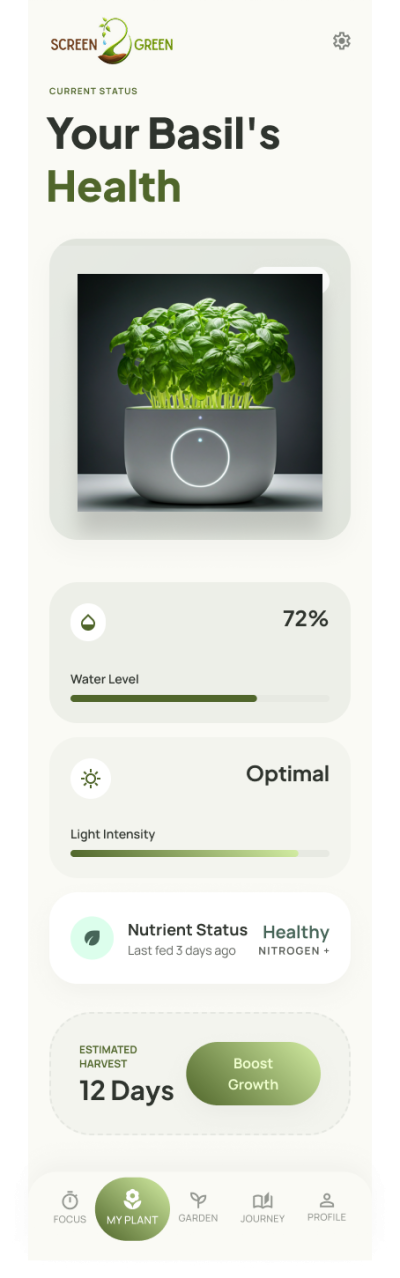
Figure 25 is a screenshot of the app interface showing the focus session page, which is designed to be the primary feature used by the user. This page allows users to configure and start a focused work session for a selected duration, during which distracting applications and notifications are blocked. The list of blocked distractions can be customized by the user to allow exceptions for apps that may be required for work or study purposes, such as certain social media platforms. Users can choose between a single uninterrupted focus session or a structured focus approach using the Pomodoro technique, which alternates between focus and rest intervals.

When the user starts a focus session, they won't get any notifications and they won't be able to open their blocked apps. In order to lift these restrictions, the user will need to finish the focus session or end it prematurely. Ending it prematurely will result in hindering the growth of the user's plant. The button to end a session prematurely will be less visible.
The reasoning behind this choice is the following:
- Seeing a bright button with negative text on it could possibly affect the user's motivation to stay off the screen.
- By being slightly less visible, the user will need to search for it actively. This time of search could stop users from having an impulsive desire to check certain applications.
Starting a focus session will generate an affirmative phrase that is also intended to keep the user motivated. This phrase will stay the same throughout the entire session and the user will not be able to regenerate it. This decision was made to avoid that the user wil get distracted by constantly regenerating this phrase.
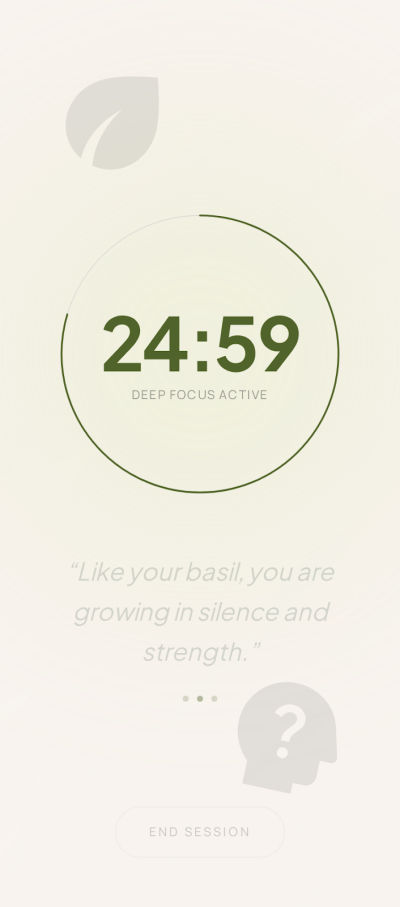
Figure 26 is a screenshot of the timer page when a session has been started. Like mentioned before, this page has a minimal amount of elements to avoid any distractions in order to maintain a distraction-free user experience.
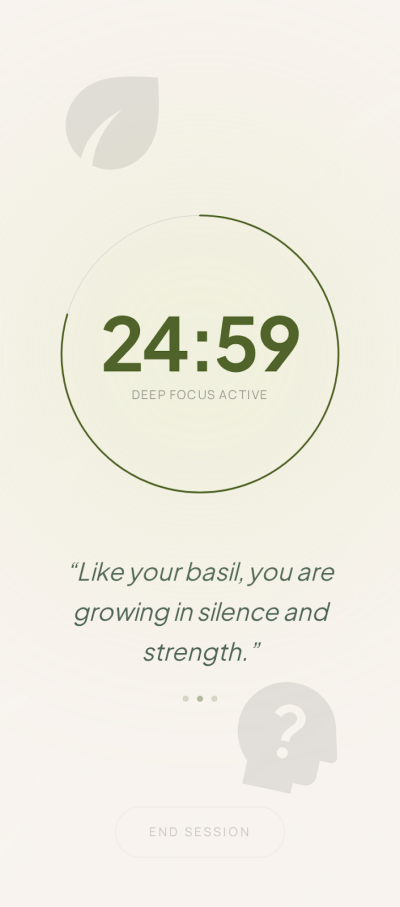
Figure 27 is a screenshot of the app interface showing the user’s focus history page. This page is designed to motivate the user and visualise their progress over time. First, it displays the user’s focusing streak together with a generated motivational phrase. Second, it shows the total amount of time the user has spent growing their plant since the initial download, which is also visualised across multiple days in a graph to highlight the user’s most productive periods. Third, the page includes a text input block where the user can log how they feel. This journalistic feature is included because writing things down can provide clarity and improve productivity and motivation [3].

Figure 28 is a screenshot of the app interface showing the profile page. This page serves two main purposes. Firstly, it provides access to all application settings for the user. Secondly, it allows the user to manage and edit their list of blocked applications. Lastly, the page includes an option for the user to log out of the application.

Figure 29 is a screenshot of the app interface showing the community garden page where users can share their plant progress with other users. This page allows users to post a picture of their plant or their progress accompanied by a caption, and also lets users view posts shared by others. Unlike typical social platforms, this community does not include any interactive features such as likes or comments. This design choice is intentional, as any form of interaction could distract the user or negatively affect their mental state.

As mentioned before, this wireframe was used in user testing. A total of 3 users were tested by completing each of the following 4 tasks.
- Sign up and connect to your growth pod
- Start a focus session and end it manually
- Check your plant's status
- Change the setting to turn off notifications
- Check your history of focus sessions
The results were the following:
- The users had slight difficulty finding the button to end the focus session, one of the users had more difficulties finding it.
- One of the users found it difficult to connect to a growth pod.
- All of the users couldn't read the generated text on the timer page.
All of these points have been refactored and this feedback has been implemented in the current state of the wireframe. Below are the comparisons between certain pages before and after user testing.
First, the pod connection page. Figure 30 illustrates the difference between 2 versions of the page on the app where the user connects the app to a growth pod. The left picture shows the version before user testing, the right showing the version after user testing and feedback.
Second, the active timer page. Figure 31 illustrates the difference between 2 versions of the page on the app where the user's focus timer is actively running. The left picture shows the version before user testing, the right showing the version after user testing and feedback.
The choice of software
Originally, the chosen software was a mix of Ionic Vue, Capacitor and Google Firebase. Ionic Vue is a framework that allows developers to build app-like user interfaces using HTML, CSS and Javascript. Capacitor is a transformation layer that translates Ionic code into native code like Kotlin for android. Lastly, Firebase is a cloud-based back end service that allows developers to create a document-based database and to implement authentication, both without needing to create and host their own back end.
This software however has its limitations. All of the following have been experienced personally by the team members.
- Ionic Vue, being made in Javascript, makes apps very taxing on the phone's battery life. Since Javascript was made for computers, it makes it more difficult to run on smaller devices in the same optimized way.
- Ionic Vue is heaviliy dependent on APIs that communicate with the phone's native components. This middle-layer makes compliation even slower, leading to slower performance when the app grows bigger.
- Querying deeply nested data in Firebase is very difficult and requires longer segments of code which in turn slow down the phone even more.
- Firebase has had multiple outages over the past 2 years, making it unreliable [4].
Because of these reasons, the app will be developed using Flutter and Supabase instead.
Firstly, Flutter gets directly compiled to native machine code which reduces compile time and overhead. Flutter also renders its own UI without the need of a web view layer. This leads to quicker rendering of elements and smoother animations.
Secondly, Supabase is built using PostgreSQL, meaning it's easier and faster to query deeply nested data. Since the app will save and update metrics and other statistics regarding the plant and the pot, having fast queries is essential.
Thirdly, both Flutter and Supabase are both open-source, meaning developers have a smoother developing experience and can focus on creating and realizing ideas rather than struggling with it.
In summary, these new choices of software will provide more performance, scalability, energy efficiency and developer efficiency. Since the user will keep their phone open on the focus screen, the battery can't suffer under the chosen architecture.
7.8.4 Tests & Results
Hardware tests
The first assembly of electrical circuit with solenoid valve on breadboard is presented in Figure 32.

The circuit begins as introduced on electrical schematic with 12 V power supply with Female DC adapter connected with yellow (ground) and red (plus) wires visible in Figure 33. The red wire is connected to switch and later to input in step-down converter used to drop voltage from 12 V to 5 V.

Next the relay module needed to operate with solenoid valve giving the information from ESP32 board, when to open and when to close the valve is visible in Figure 34. Input of step-down converter is connected using blue wire with OM channel of relay module. The red wire is connected to blue relay module normally open channel by red wire. The black wire of the solenoid valve is connected to ground.

Second part of the relay module presented in Figure 35 used green wire to communicate with ESP32 and receive the information about action related to solenoid valve, black wire is connected to the GND and orange one of VCC is connected to 5 V power supply located on ESP32.

A mechanical error occurred specifically regarding the water flow through the solenoid valve. The system's gravity-fed water reservoir has a water head of 17 cm, which does not generate enough static pressure required for the component. The exact model tested is a pilot-operated solenoid valve, which requires a minimum working pressure range of 0.02 to 0.8 MPa to physically open the internal seal.
To overcome this pressure limitation for the prototype phase, an 8W submersible pump will be added inside the water reservoir to generate the necessary force. The pump will push water through a translucent pipe. In order to control the submerged water pump second relay module will be used in order to communicate with ESP32 with same principal of work as the solenoid valve combined with first relay. To connect this to the system, a brass 1/2“ female hose barb adapter will be used. The valve will screw directly into the adapter, and the smaller inlet of the adapter will connect to the pump's translucent pipe, completing the circuit from the reservoir to the valve. For the prototype the barb adapter has two threads, female one used to connect with the valve and the outer male thread used to connect adapter with threaded hole in side wall of the water reservoir.
For the final production unit, the system will return to the original gravity-based design without the need for a water pump. To achieve this, the current pilot-operated valve will be replaced with a zero-pressure valve, such as a direct-acting solenoid valve or a motorized ball valve, which relies solely on gravity to allow water flow. Valve of this type also operates on 12 V, which will not require changes in circuit design.
Software tests
The application has been tested on functional user tests, UI performance, back-end load handling and system usability using SUS-tests.
Software tests comprise: (i) functional tests regarding the identified use cases / user stories; (ii) performance tests regarding exchanged data volume, load and runtime (these tests are usually repeated 10 times to determine the average and standard deviation results); (iii) usability tests according to the System Usability Scale.
Performance: Testing an application on performance requires the developer to look at the disparity between the UI build and the raster build.
UI performance refers to how quickly the application processes input, updates state, and completes layout and rendering decisions on the main thread. Slow UI performance usually results in delayed interactions and unresponsive or janky behavior.
Raster performance refers to how efficiently the system converts rendered layers into actual pixels on the screen, often using the GPU. Poor raster performance leads to visual stuttering, dropped frames, or delays in what is actually displayed even if the UI logic is fast.
The Screen2Green app performed on high speed, reaching an average UI build speed below 2 ms and an average raster build speed below 5 ms.

Occasionally, the app would experience jank, meaning some widgets would slow down the app.
These occasions include the following:
- Creating a social media post
- Opening the social zone and seeig images load
- opening the register or sign-in page


Load:
The team used k6 to load test the back-end of the application. First, a script was written with the purpose of creating a large amount of accounts to enable load testing. 200 user profiles were created using a script written in JavaScript and ran using k6.
At the time of writing this report, it's not possible to load test further due to API shortage prevention in Supabase.
The idea is to test the following 3 items:
- log-ins in abundance
- creating social media posts in abundance
- retrieving them in abundance
The team will continue this type of test in the near future.
System Usability Scale - SUS
The SUS-test is made to measure the scale of a product's necessity and ease of use and is measured using a small questionnaire of 10 questions where a tester gives a score between 1 and 5 on each question. Odd questions have their answer subtracted by one and even questions have the answer subtracted from 5. Lastly, the new answers get counted up and multiplied by 2.5.
After questioning 10 users, the application in its current state is seen as a mix between neutral and good. The average score of all results, which are in the deliverables and Microsoft Teams, is 74.17.
7.9 Summary
This chapter explained how Screen2Green was developed from the first idea to the prototype. The process started with the design question and brainstorming. Different pot shapes and water tank ideas were explored, and the final direction was chosen based on water flow, stability, space for electronics, and the overall appearance of the product.
The final design includes a cork outer structure, a transparent water tank, an inner pot, and a lower space for the electronic components. The water tank was designed for a gravity-fed system, so the shape and valve position were important. The design was also developed through sketches, renders, SolidWorks models, and technical drawings.
The smart system uses an ESP32, sensors, a relay module, a step-down converter, and a solenoid valve to control the watering process. The mobile application was designed to connect the plant care system with the user’s screen-time habits. The app includes plant monitoring, focus sessions, notifications, history, and profile settings.
A simplified prototype was built to test the main parts of the system. The hardware tests showed that the power supply, relay module, solenoid valve, and sensor connections worked as expected. The software tests showed that the app could support the main user tasks, although some issues were found in loading, readability, and usability.
Overall, this chapter shows how the initial idea became a more complete product concept and prototype. The next chapter explains the software system in more detail, including the app structure, data flow, and user interaction.